If you use Timetable (E10), you can access its help articles here
Introduction
Use Generate timetable in Timetable Builder to create your timetable. If you see an error, work back through the set up sections (Rooms, Students & Groups, Staff, and Classes & Subjects) to fix missing details or availability issues, then run the generator again. When generation completes, review the timetable and use filters to check teachers, groups, rooms, and multi-week views.
The timetable is generated using the information in the timetable draft to schedule classes against staff availability, room capacity, and group requirements.
TABLE OF CONTENTS
How to generate a timetable draft
Go to Timetable Builder in a timetable draft:
- select Generate timetable.
If further changes are needed before the timetable can be created, you may see Pending tasks to be fixed.
Troubleshooting: fixing Pending tasks
- Go back through the set up sections and refine the information entered.
- Check that all required fields are completed in Rooms, Students & Groups, Staff, and Classes & Subjects.
- Confirm there is enough staff availability to cover all required lessons.
- Confirm you have selected enough suitable rooms to accommodate all subjects and groups (for example, specialist rooms where needed).
- Check classes and subjects are set up correctly and placed against the right groups/staff.
Once Pending tasks have been fixed, select Generate timetable again.
While the timetable is being created, you’ll see progress messages such as:
- Starting to generate your new timetable…
- Collecting necessary data…
- Analysing your scheduling needs…
- Working on creating the best possible timetable…
Depending on the amount of data the Timetable builder needs to process, it could take up to 45 minutes to generate a timetable.
What happens when the timetable has been generated
When the timetable opens, you can use filters at the top of the page to quickly find specific schedules.
- Filter by Teacher to view an individual teacher’s timetable.
- Filter by Group name to view a specific student group’s timetable.
- Review the overall layout for clashes or gaps.
- Check teacher workloads are balanced across the week.
- Check room usage to make sure specialist rooms and capacities are appropriate.
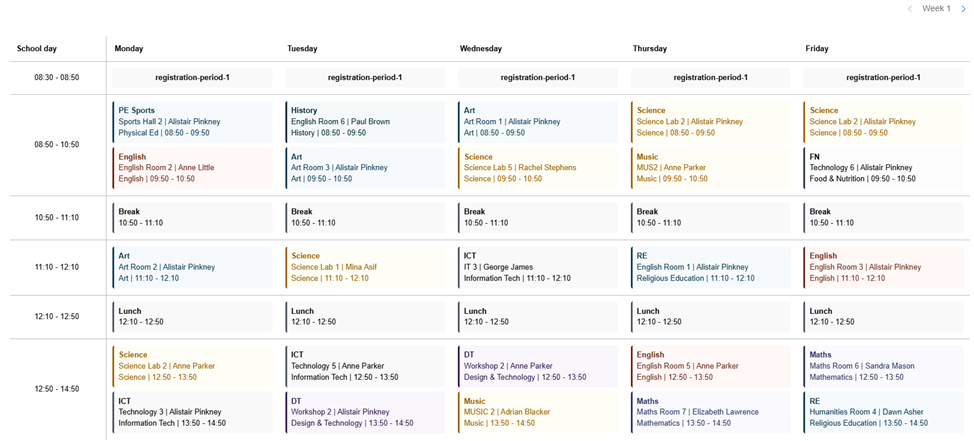
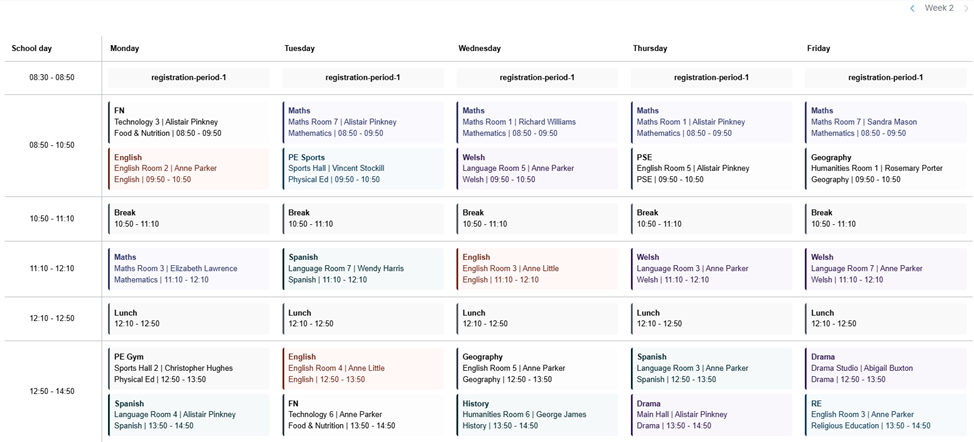
If you’re using a 2- or 3-week timetable, use the arrow in the top-right corner to switch between weeks.
Timetable preview (multi-week)
If you’ve generated a multi-week timetable, you’ll see separate views for each week (for example, Week 1 and Week 2) as shown below.
Week 1
Week 2
 Up next
Was this article helpful?
That’s Great!
Thank you for your feedback
Sorry! We couldn't be helpful
Thank you for your feedback
Feedback sent
We appreciate your effort and will try to fix the article