If you use Timetable (E10), you can access its help articles here
Introduction
In Timetable 2.0, student data (first name, last name, gender, email and groups) is imported or manually uploaded from your school's MIS/SIS.
Groups are the cohorts that students are assigned to and one student can have many cohorts. For example; year level, year level form group, elective/choices groups, sports groups, etc.
This article explains where student data comes from, how to add and manage Custom groups, and what you can (and can’t) edit when groups are imported or maually uploaded from your MIS/SIS.
IN THIS ARTICLE
Students in Timetable 2.0
Students are imported or manually uploaded from your MIS/SIS. Each student record shows the groups the student is currently allocated to.
You cannot make any changes to the student data that has been imported or uploaded in Timetable 2.0. Any required changes need to be made in the MIS/SIS and will either import within 24 hours or require manual upload into Timetable 2.0.
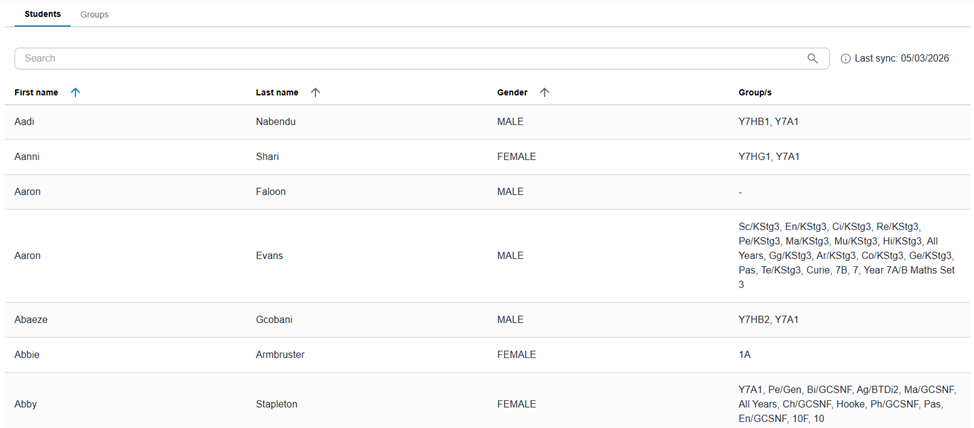
Tip: Use the student record to quickly confirm which groups a student belongs to.
Groups
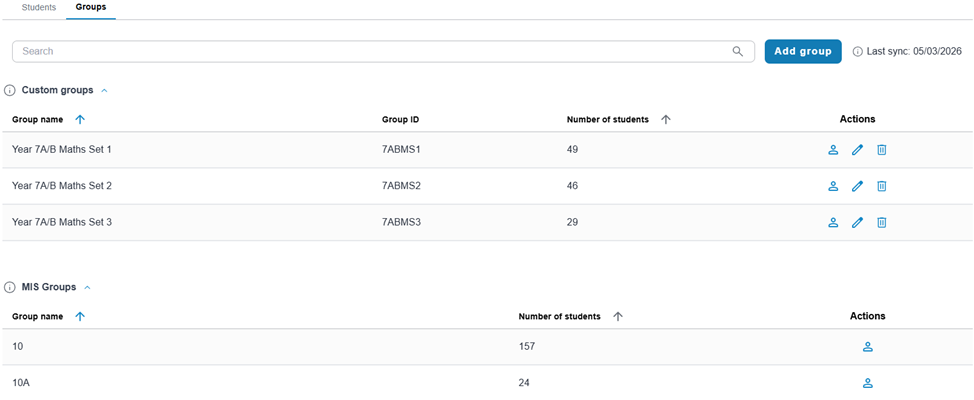
Timetable 2.0 uses two types of groups: Custom groups and MIS groups. Either custom or MIS groups are used to group cohorts of students together.
Custom groups
Custom groups are created and managed in your Timetable 2.0 system. You can create, edit, and delete them as needed, and allocate multiple students to a Custom group.
MIS groups
MIS Groups are imported or manually uploaded from your MIS/SIS and can’t be edited in Timetable 2.0.
Up next
Was this article helpful?
That’s Great!
Thank you for your feedback
Sorry! We couldn't be helpful
Thank you for your feedback
Feedback sent
We appreciate your effort and will try to fix the article