If you use Timetable (E10), you can access its help articles here
Introduction
Rooms and room ID codes are imported from your MIS/SIS or via manual upload, but the system needs to know which subject/s can be taught in each room.
During timetable generation, lessons can only be scheduled into rooms that have the subject assigned to them. If a subject is not assigned to any room, lessons for that subject will not be created.
IN THIS ARTICLE
Assign subjects to rooms
To assign subjects to rooms, go to Drafts and select Add new draft or open a draft timetable:
- Select Rooms.
- Under Actions open a room by selecting the pencil icon.
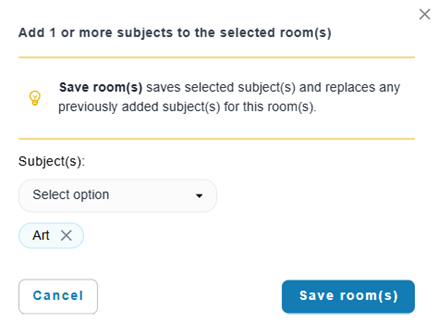
- Use the dropdown to select one or more subjects for the room.
- Select Save room.
You have assigned subject/s to a room.
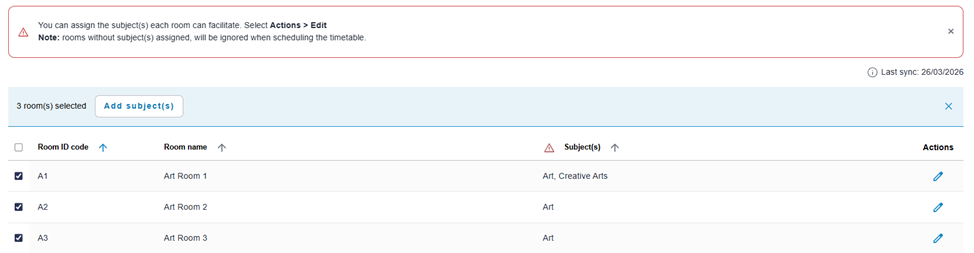
Note: to assign one or more subjects to multiple rooms, select the checkboxes next to each room in Rooms and select Add subject(s). You can then use the dropdown to select one or more subjects to the selected rooms. Select Save room(s).
Specialised Rooms - If a subject requires a specific type of room, ensure it is explicitly assigned in the room/s. For example, Physical Education (PE) may require both a practical space (e.g. Sports hall) and a classroom for theory lessons.
Example: Editing a room to assign subjects.
Up next
Was this article helpful?
That’s Great!
Thank you for your feedback
Sorry! We couldn't be helpful
Thank you for your feedback
Feedback sent
We appreciate your effort and will try to fix the article