If you use Timetable (E10), you can access its help articles here
Introduction
This feature allows Timetablers to create temporary teacher records and assign them to cover lessons in the Concrete Timetable. Temporary staff can be selected during the cover workflow without needing to create or maintain a permanent staff record in the school’s MIS.
Schools regularly rely on supply teachers, trainees and agency staff to cover lessons, but these staff are often not part of the permanent employee data.
This feature enables schools to:
- Quickly create temporary cover staff.
- Assign them to cover lessons.
- Re-use regular supply / temp staff easily, assigning them to upcoming cover in advance.
- Distinguish temporary from permanent staff.
- Send personalised read-only timetables to trusted temp staff.
TABLE OF CONTENTS
Create a new temporary staff member
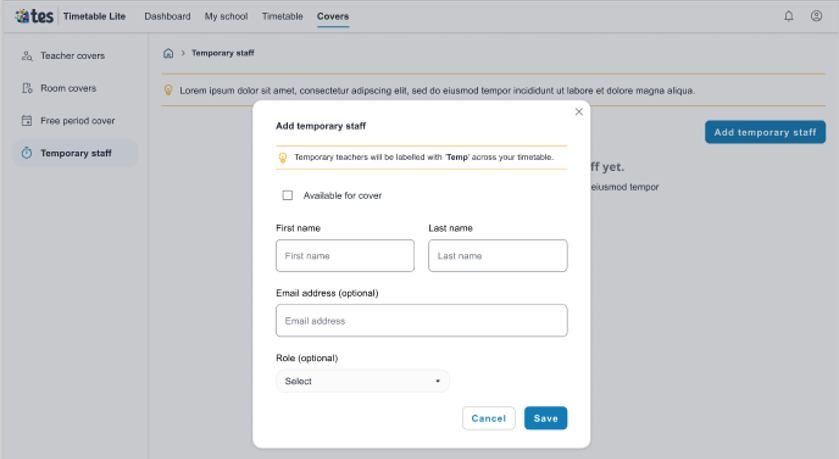
To create a new temporary staff member, go to Covers > Temporary teachers and select Add temporary staff:
- Select the checkbox if the temporary staff member is currently available for cover.
- Add their first name, last name and email address.
- Select their role using the dropdown.
- Select Save.
You have added a new temporary staff member in Timetable 2.0.
Notes:
- Temporary staff who are currently available will appear in the dropdown when assigning cover staff and also in the staff list when sharing the timetable link.
- Temporary staff member availability for cover can also be toggled on/off on the staff list.
Up next
Was this article helpful?
That’s Great!
Thank you for your feedback
Sorry! We couldn't be helpful
Thank you for your feedback
Feedback sent
We appreciate your effort and will try to fix the article