Complete these sections in order before generating a timetable:
A. Rooms
B. My school year
C. Students and groups
D. Classes and subjects
E. Staf
A. Rooms
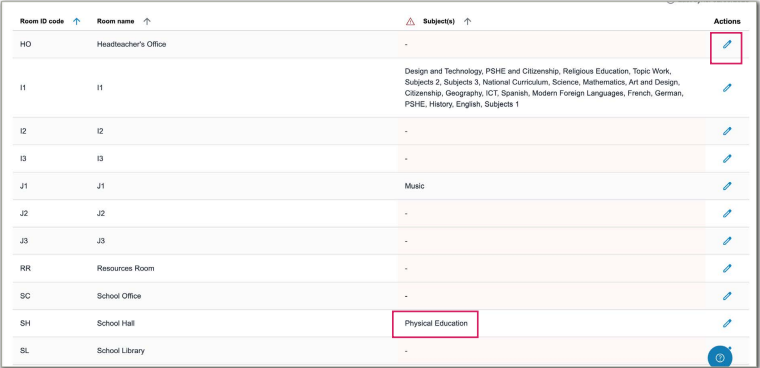
• Rooms are imported from your MIS
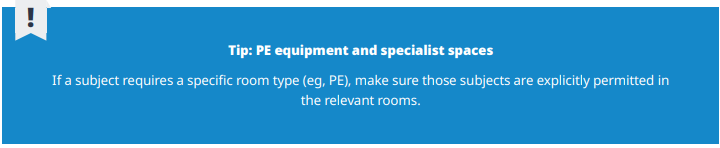
• Assign permitted subjects per room: select the pencil icon and tick the subjects that can be taught in that room
Why it matters: during generation, the system uses these subject–room rules to place lessons correctly
B. My school year
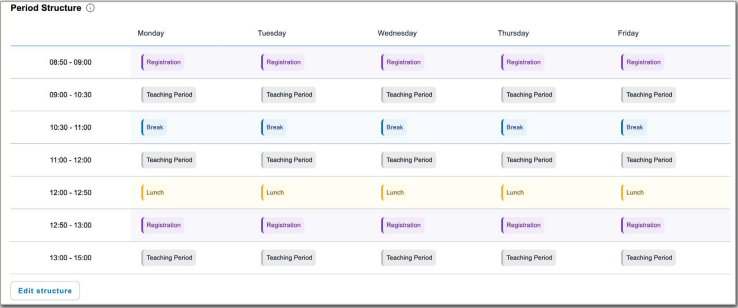
Define the structure of your week. Every day follows the same pattern.
Set:
• Start / end time
• Breaks
• Lunch
• Registration
All remaining time becomes teaching periods where lessons can be placed.

C. Students and groups
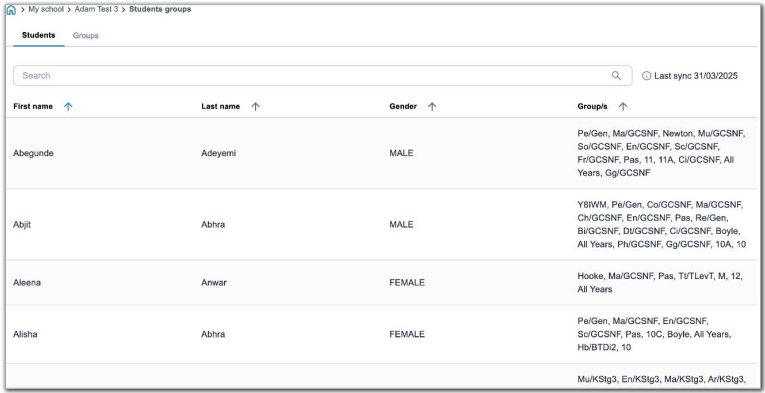
Students
Students are imported from your MIS. Each student shows the groups they’re currently allocated to.
Groups
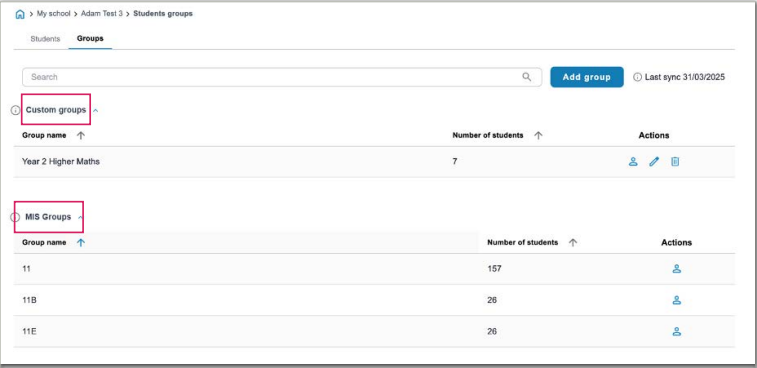
There are two types of groups: MIS Groups and Custom groups.
MIS Groups
These are groups that have been imported from your school’s management
information system.
Custom groups
These are groups that you define and only exist in the timetable product. You
allocate students into these groups.
D. Classes and subjects
Subjects
• Subjects are imported from your MIS
Classes
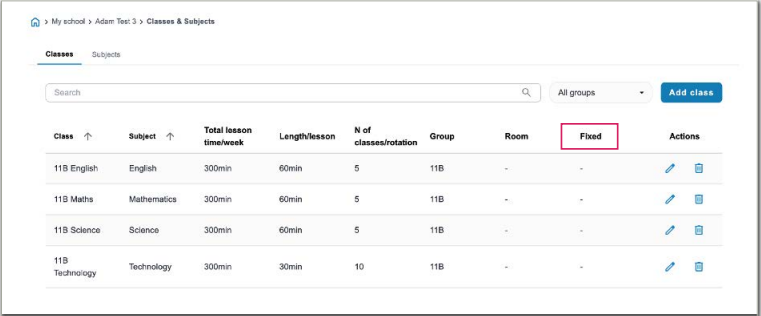
• A Class = group of students learning a subject, taught by a teacher, in a room,
for a set period
• Unique name required for each class
• Optionally pre-assign a room. If left blank, generation places classes using your
Rooms < > Subject permissions
Fixed classes (pin a class to a slot)
• Mark a class as Fixed to make it occur on a specific day and time
• One fixed instance per unique class name
̵ Need multiple fixed lessons for the same subject? Create separate class
records (eg, Maths 1A (Mon 13:00) and Maths 1A (Tue 13:00))
Naming convention (recommended)
• {Subject} {Year/Group} {Set} > eg, Maths 1A, Maths 2B
• Clear names make filtering, fixing and cover far easier
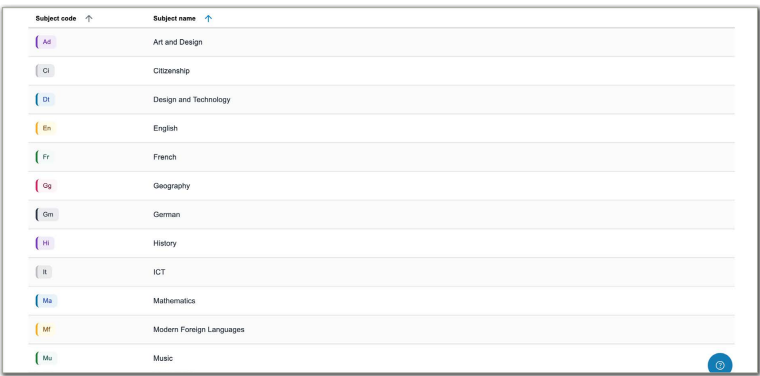
Subjects
Subjects are automatically populated from your school management system.
E. Staff
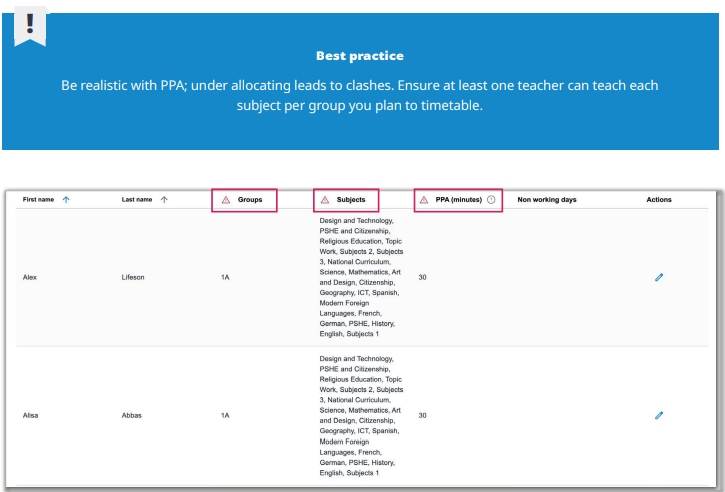
Staff are imported from your MIS.
• For each staff member, set:
̵ PPA time per week (non-teaching time)
̵ Subjects they can teach
̵ Groups they will teach (if applicable)
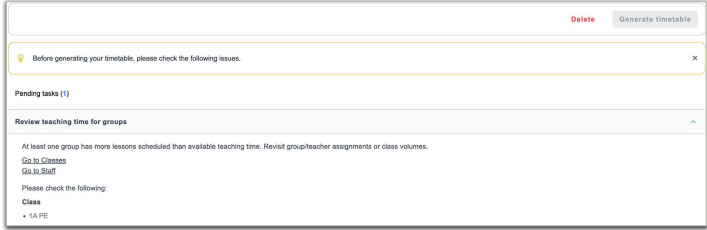
Pre flight check (Auto)
When you go to generate, Tes Timetable Lite automatically checks for missing or
invalid setup (eg, a subject with no eligible teacher or room).
• You’ll see a list of items to fix before generation can proceed
• Resolve items directly in the relevant My school section, then return to
generate
Was this article helpful?
That’s Great!
Thank you for your feedback
Sorry! We couldn't be helpful
Thank you for your feedback
Feedback sent
We appreciate your effort and will try to fix the article