If you use Timetable (E10), you can access its help articles here
Introduction
Use Preview to check your timetable by week or by date, then Publish Timetable to lock it in against the dates set in My school year. You can also edit, create, print, or delete timetables from the Actions menu.
IN THIS ARTICLE
Before you publish
On the timetable page, select Actions to manage your timetable:
- Edit
- Create new
- Preview
- Delete
Preview your timetable
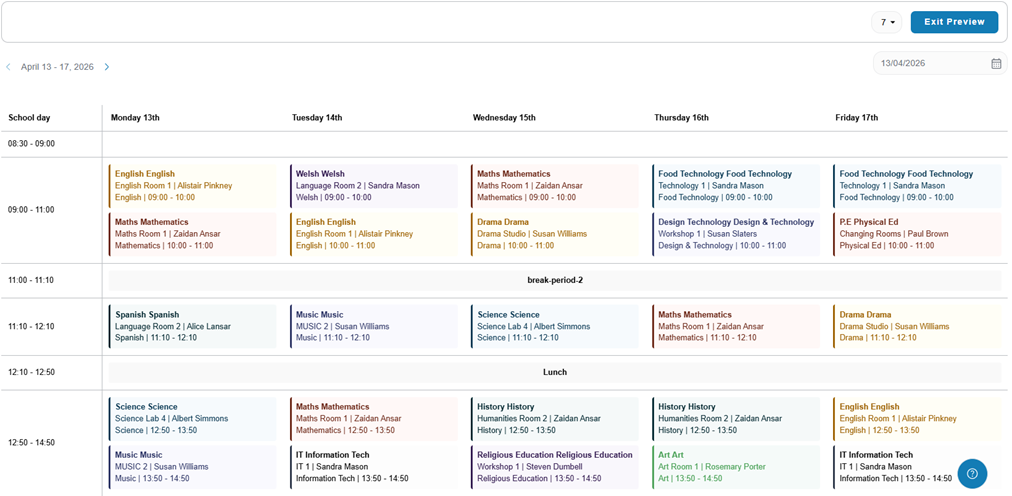
Select Preview to open the timetable preview.
- Move through the timetable week by week.
- Use the date picker to jump directly to a specific date.
Publish your timetable
- In preview, review the timetable until you’re happy with the dates, classes, lessons, and events shown.
- Select Exit Preview.
- Select Publish Timetable.
How publishing works
When you publish, the timetable is secured against the dates you’ve set in My school year. This supports time-bound activities and ensures classes, lessons, and events appear on the correct dates.
Up next
Manage planned and unplanned teacher cover
Was this article helpful?
That’s Great!
Thank you for your feedback
Sorry! We couldn't be helpful
Thank you for your feedback
Feedback sent
We appreciate your effort and will try to fix the article